Blog · October 14, 2026
QR Fundraiser Poster by Opening Time: A Florist’s Community Garden Workflow
A Tacoma florist needed a fundraiser poster before opening time. See how she created a memorable short link, customized its QR code, and built a polished community garden poster with SkyCanvas.
A storm had torn through Tacoma just days before the Alder Street Garden’s Saturday fundraiser. The garden beds survived, but the tool shed did not. Volunteers had already planned a day of planting, refreshments, and flower sales, and now they needed the event to help pay for repairs too.
Marisol Vega, owner of Juniper & Stem Floral Co., offered her shop window as the neighborhood bulletin board. Her challenge was timing. She needed one clear place for donation details and volunteer information, plus a poster that people could understand from the sidewalk. The florist opened in less than an hour.
Using SkyCanvas, Marisol turned the fundraiser page into a short link, gave it a branded QR code, and placed that code into a US letter poster. Here is the complete workflow.
1. Prepare the business profile
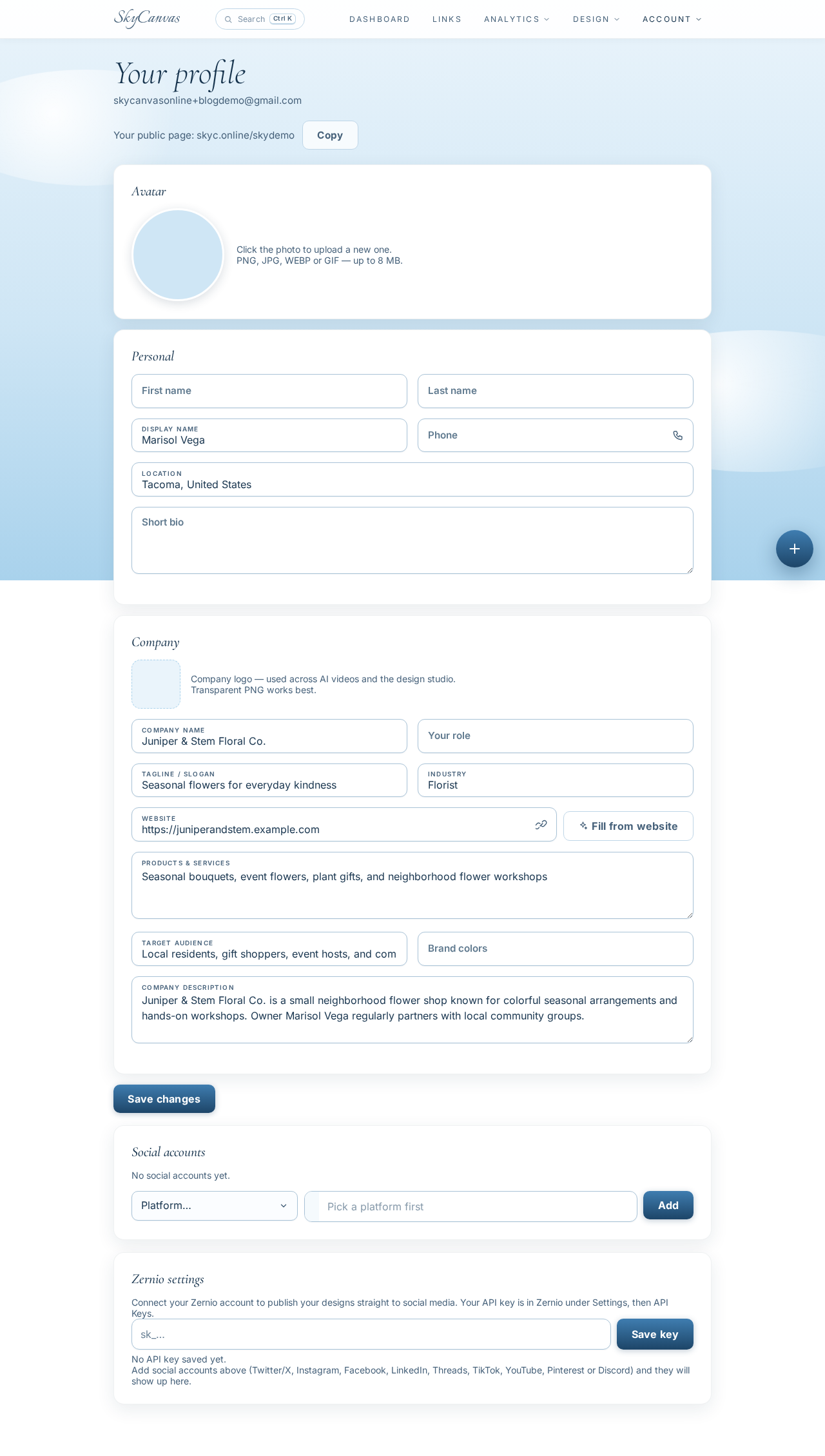
Marisol started with the SkyCanvas business profile. This gave the design tools useful context about Juniper & Stem, including its name, tagline, industry, services, audience, and overall voice.
On the profile page, she entered Juniper & Stem Floral Co., added the tagline Seasonal flowers for everyday kindness, and selected florist as the industry. She also described the shop’s seasonal bouquets, plant gifts, event flowers, and neighborhood workshops.
Those details mattered because the fundraiser poster needed to feel like it came from the flower shop. It also needed to remain focused on the community garden rather than looking like a general store advertisement.
2. Create one memorable fundraiser link
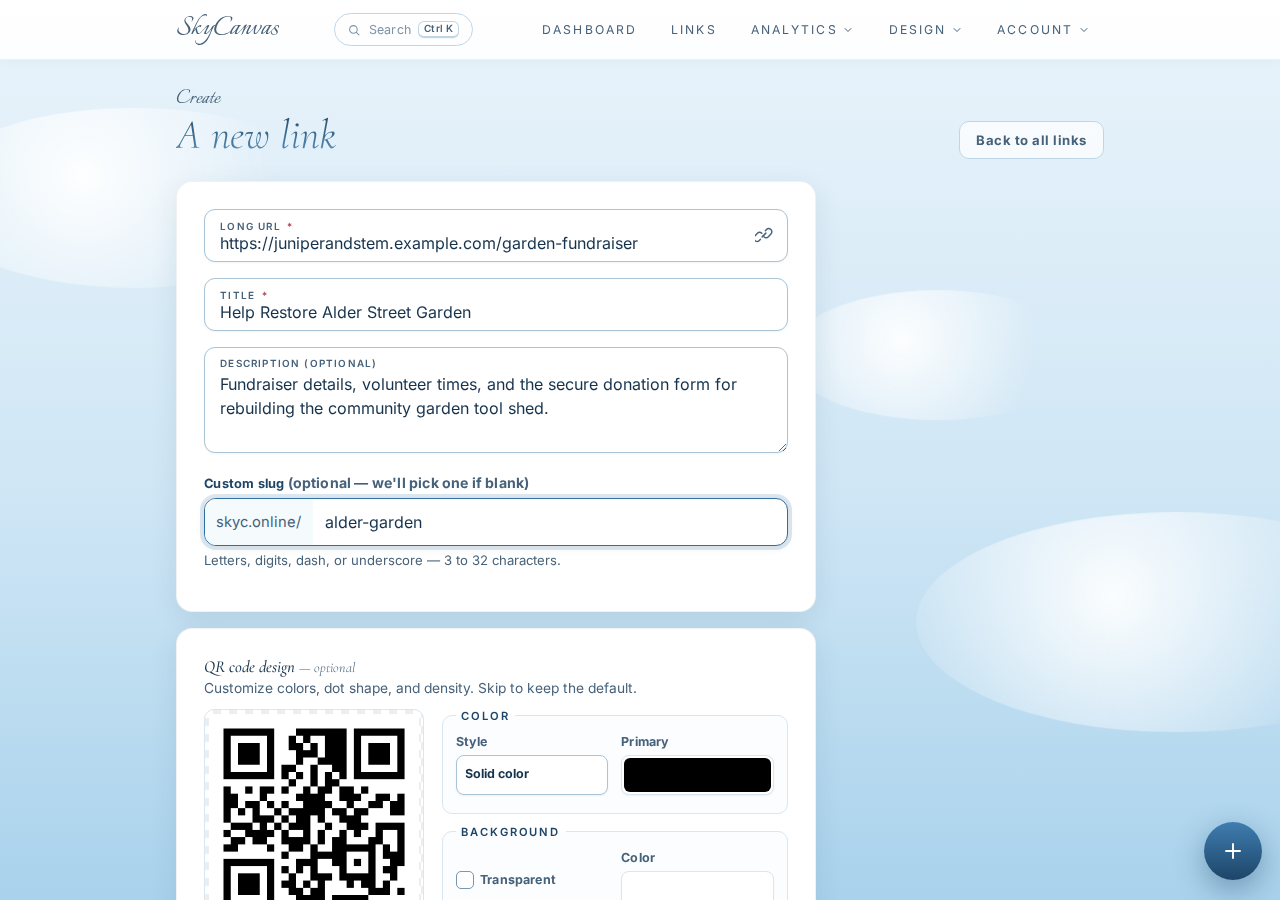
Next, Marisol went to Links and chose the option to create a new short link. The destination was the fundraiser page on the florist’s website, where neighbors could read the schedule, volunteer, and reach the donation form.
She filled in four fields:
- The destination URL for the garden fundraiser page
- The title, Help Restore Alder Street Garden
- A short description explaining the fundraiser and volunteer details
- The custom slug alder-garden
The live QR preview on the right let her confirm that a code would be generated for this specific destination.
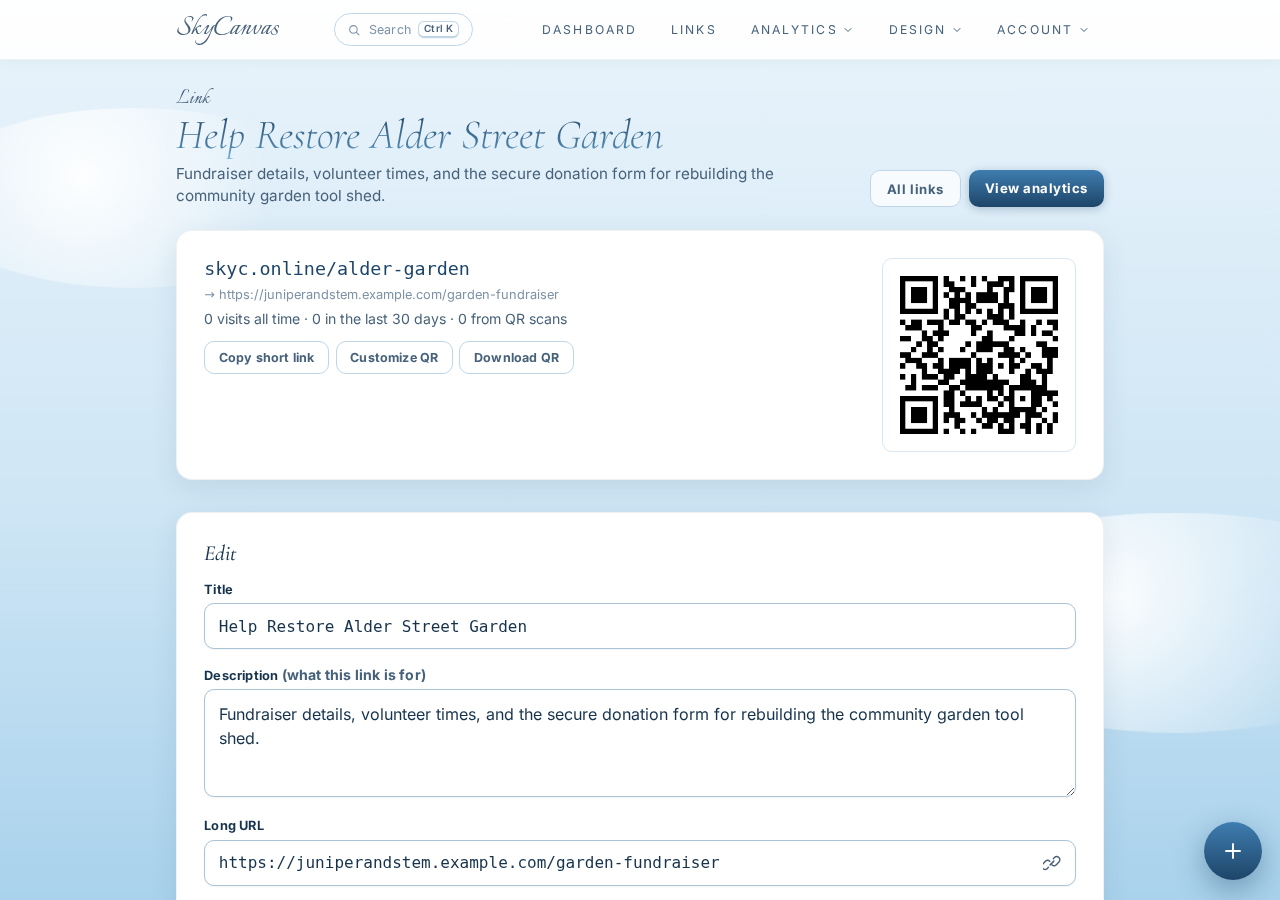
After saving, SkyCanvas created skyc.online/alder-garden. That was short enough to print beneath the QR code, so someone could type it manually if scanning was inconvenient.
The detail page also showed the original destination and the generated QR code. At this stage, Marisol already had something useful: a compact address she could share at the counter, in a neighborhood message, or on a handwritten sign.
3. Match the QR code to the florist’s colors
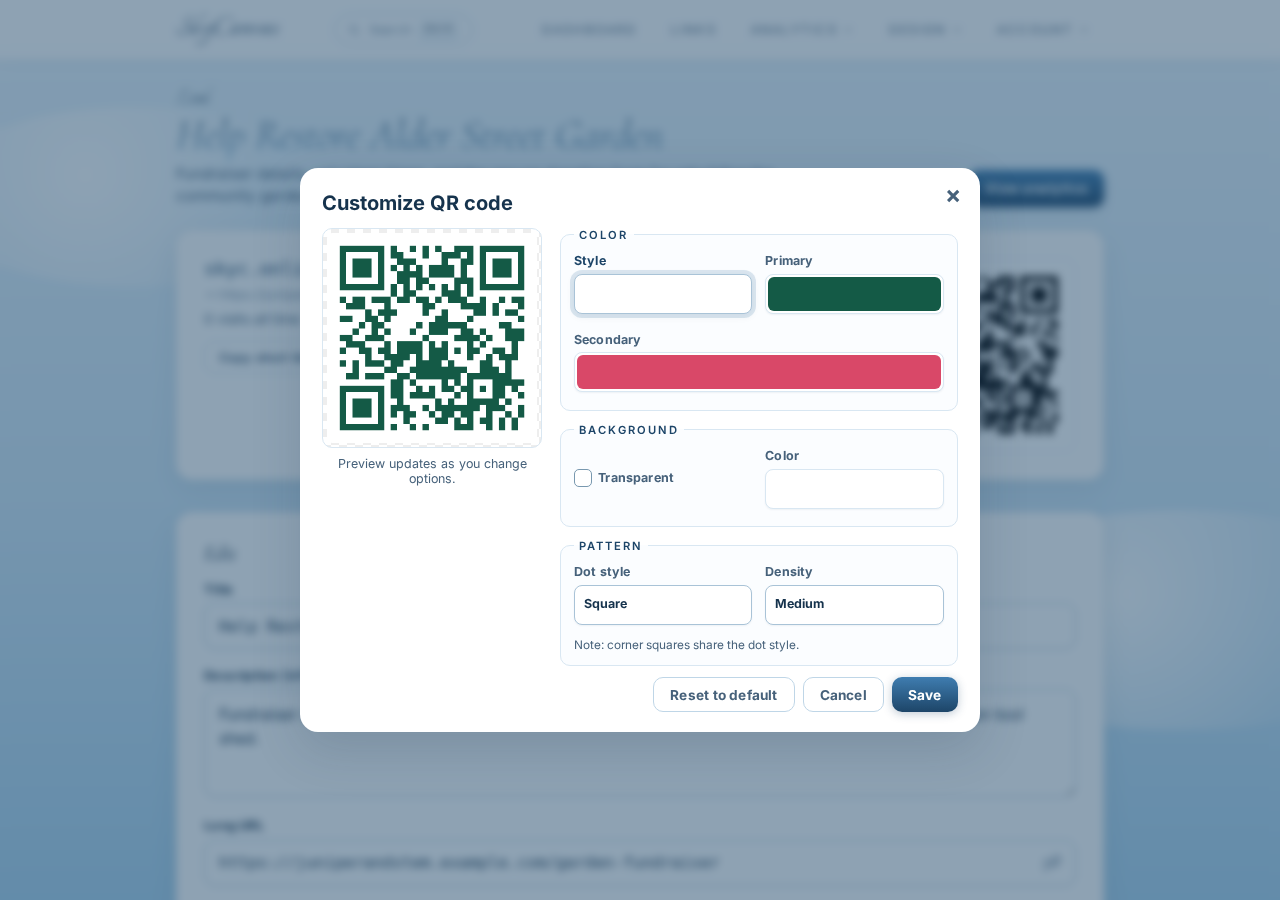
A standard black QR code would have worked, but Marisol wanted the poster to feel connected to Juniper & Stem. On the link page, she opened the QR customization controls and applied the shop’s garden-inspired palette.
She chose deep green as the primary color, coral pink as the second color, and white for the background. The live preview made it easy to see the result while adjusting the style.
The white background was an important practical choice. It created strong contrast around the modules, helping the code remain visually distinct when placed inside a colorful poster.
4. Start a correctly sized window poster
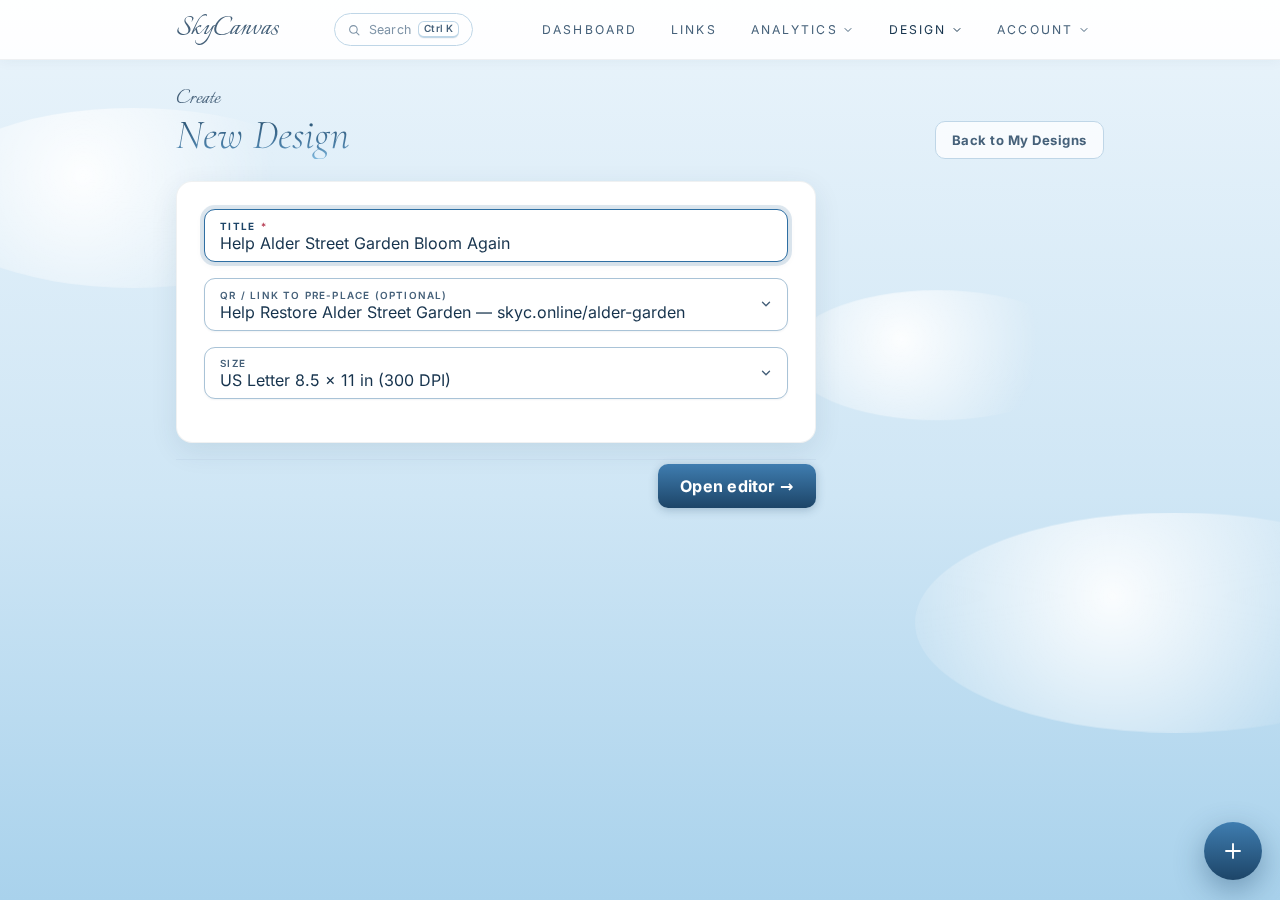
With the link ready, Marisol moved to Marketing Materials and started a new design. She named it Help Alder Street Garden Bloom Again and selected the US letter preset.
Choosing the final size at the beginning meant she could design for the actual sheet that would go into the shop window. She also selected the Alder Street Garden short link, allowing its QR code to be available inside the design.
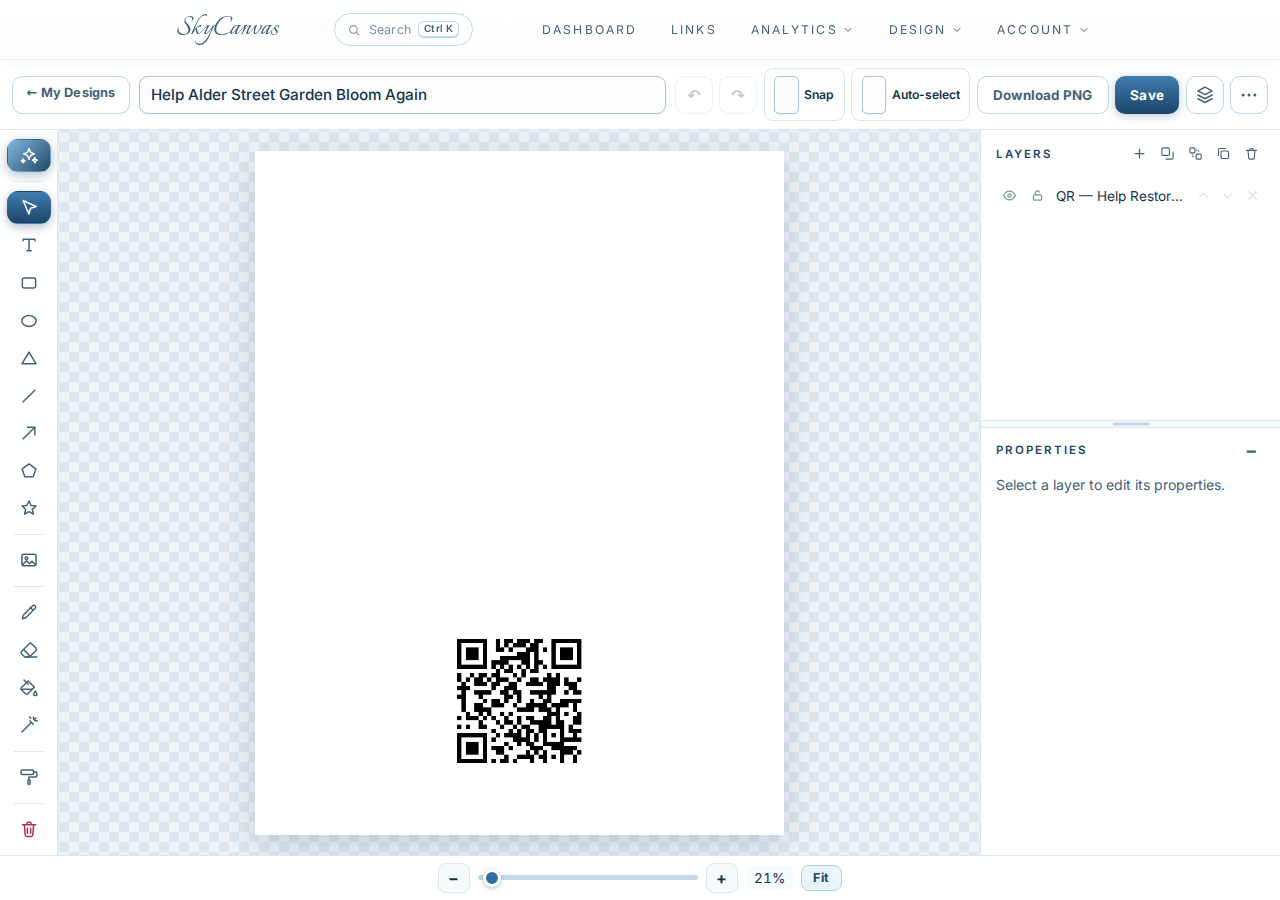
The new design opened in the SkyCanvas editor. The central canvas showed the working page, while the toolbar provided text, shapes, drawing tools, and image controls. A layers panel sat on the right, and the Design with AI button was available above the canvas.
Marisol could have assembled the poster by hand, but the clock was moving. She used the AI design workflow to establish the full layout first, knowing the result would remain editable.
5. Describe the fundraiser in plain English
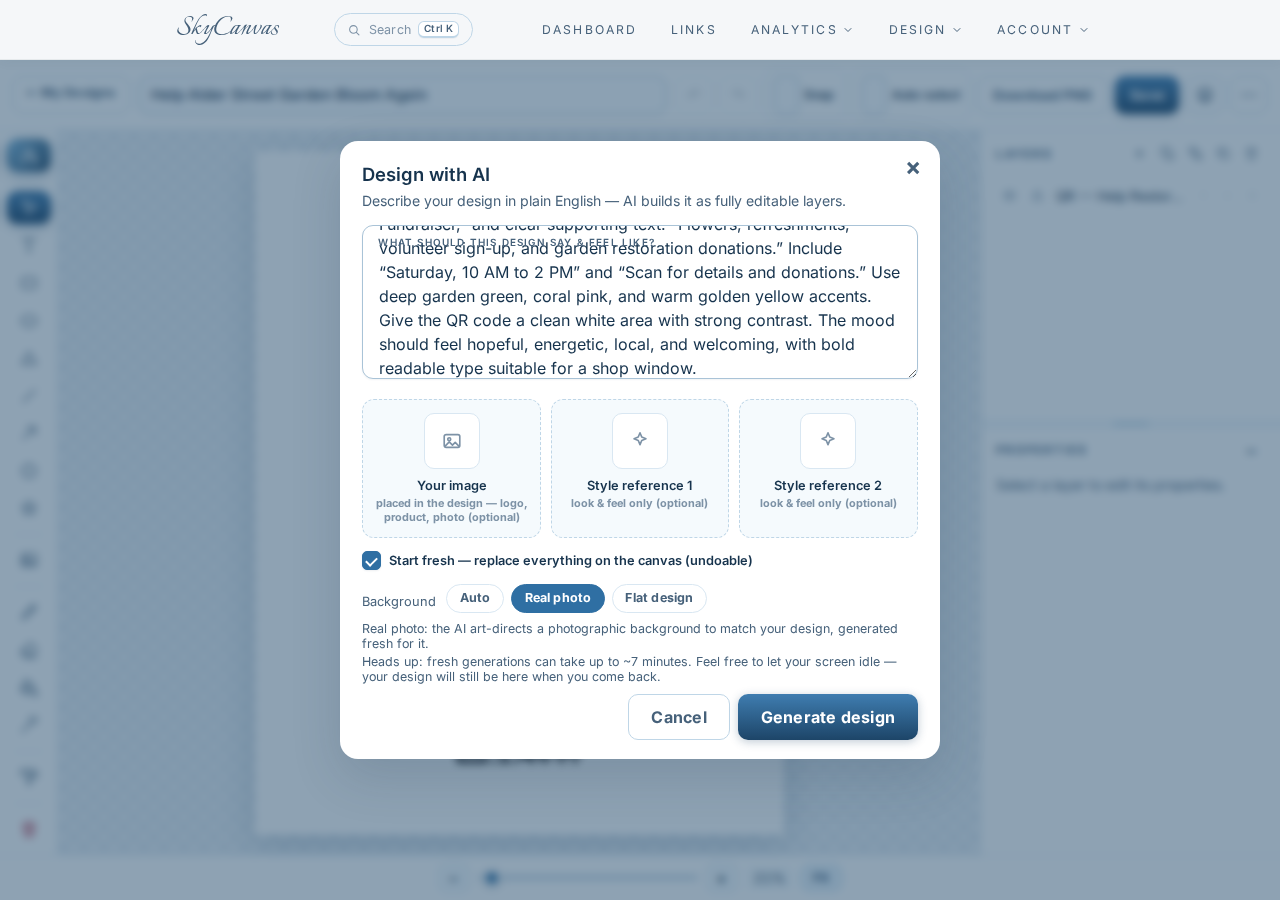
In the Design with AI window, Marisol wrote a detailed brief. She asked for a hopeful neighborhood garden fundraiser poster with the headline, event hours, volunteer message, donation prompt, and a clean white area for the QR code.
She also specified deep garden green, coral pink, and warm golden yellow. For the background setting, she selected Real photo, which tells the designer to art-direct a photographic approach as it builds the piece.
The useful part of the brief was its specificity. It included the exact wording people needed to see from the sidewalk, along with the desired mood and practical requirement for bold, readable type.
6. Review the generated poster and its layers
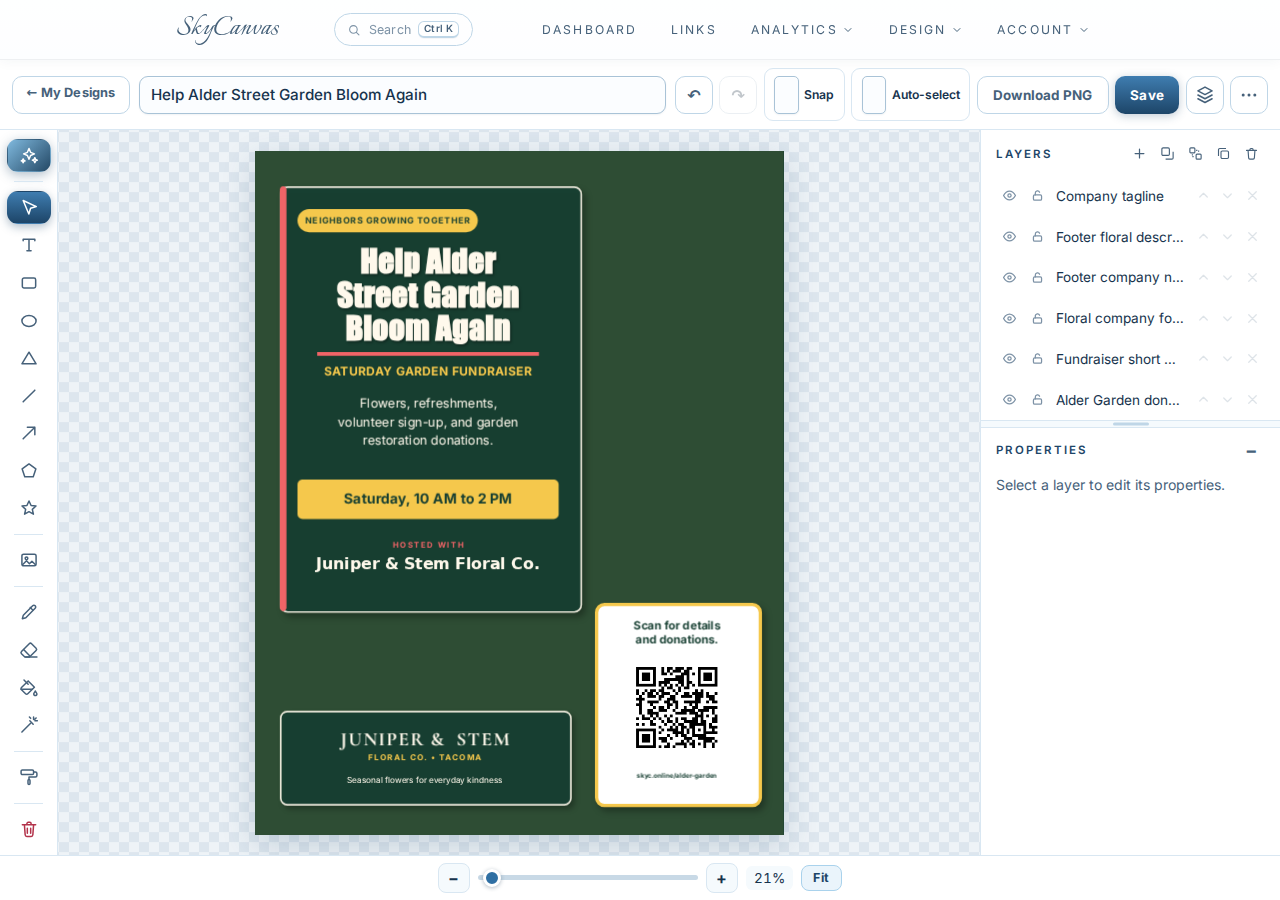
The finished design used a rich garden-green field, a coral accent line, golden yellow labels, and large cream lettering. The headline occupied the strongest position, followed by the fundraiser name, event description, and a prominent yellow block for Saturday, 10 AM to 2 PM.
A bordered white panel in the lower-right corner held the QR code with the prompt Scan for details and donations. The short address appeared beneath it as a helpful backup. Juniper & Stem’s name and tagline anchored the lower portion of the poster.
The screenshot also shows the layers panel beside the canvas. The company tagline, footer details, fundraiser text, and donation elements are separate editable layers, so Marisol could refine individual pieces before downloading the poster as a PNG.
From urgent request to a useful shop-window sign
Before opening, Marisol had a polished US letter poster ready for the florist’s window. Neighbors could understand the purpose and schedule at a glance, then scan one code to find donation details and volunteer information. The memorable skyc.online/alder-garden address gave them a second way to reach the same page.
For Juniper & Stem, the real win was having one connected workflow. The fundraiser link came first, the branded QR code pointed to it, and the finished poster carried both into the physical neighborhood.
If your business needs a clear link, custom QR code, and ready-to-print design for its next community project, create a free SkyCanvas account and build the pieces in one place.
Juniper & Stem Floral Co. is a fictional business we created to show a real SkyCanvas workflow. Every screenshot is real, captured live while writing this guide.